More Pixels, More Problems: The Surprising Truth About High-Res Wallpapers on Your Monitor
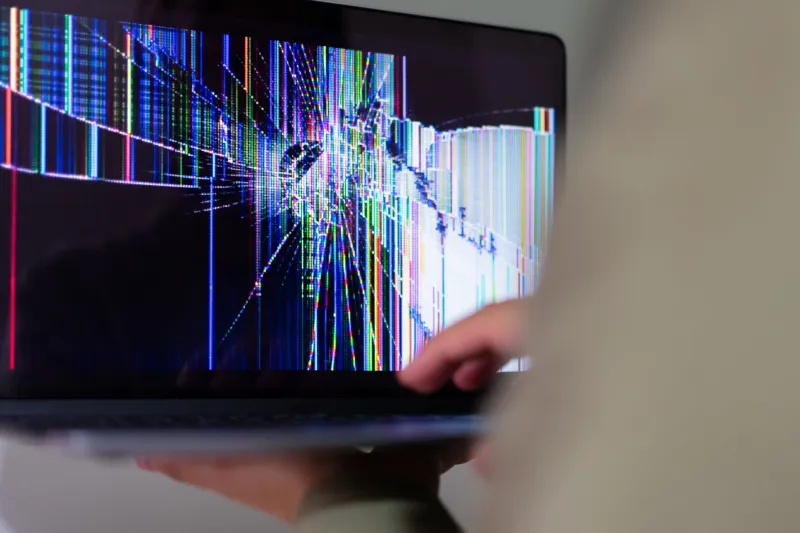
There's a moment most of us have experienced: you find an absolutely stunning wallpaper, download the highest-resolution version available, set it as your background, and then... it looks kind of off. Maybe the colors seem washed out. Maybe the edges look weirdly soft. Maybe it just doesn't pop the way it did in the preview thumbnail.
You're not imagining it. And no, your monitor isn't broken.
The truth is, there's a genuine paradox buried in the way desktop wallpapers interact with display hardware — and understanding it can completely change how you choose and set your backgrounds.
Your Monitor Has an Opinion About Resolution
Every display has what's called a native resolution — the exact pixel grid it was physically built around. A 1080p monitor has 1,920 × 1,080 pixels. A 1440p display has 2,560 × 1,440. A 4K panel sits at 3,840 × 2,160. These aren't suggestions; they're the precise dimensions your screen uses to render everything you see.
When a wallpaper matches your native resolution perfectly, each pixel in the image maps directly to a physical pixel on the panel. Clean. Crisp. Accurate.
But here's where it gets tricky: when you feed your monitor an image that doesn't match — whether it's larger or smaller — the display has to do some math to make it fit. That process is called scaling, and it's not always pretty.
The Scaling Problem Nobody Warns You About
Let's say you download a gorgeous 8K wallpaper (7,680 × 4,320 pixels) and set it on a standard 1080p monitor. Your operating system needs to squish that image down dramatically to fit. To do that, it samples and blends neighboring pixels together — a process called downsampling.
In theory, more source pixels should mean more detail. In practice, the algorithm doing the downsampling often introduces subtle blurring, color shifting, or banding artifacts, especially in images with fine textures, gradients, or sharp contrasting lines. The result can look noticeably softer than a wallpaper that was sized perfectly for your screen from the start.
The reverse problem — upscaling a low-resolution image to fill a high-DPI display — is even more visually brutal. You've seen it: that pixelated, blocky look that makes a background feel like it was pulled from a 2003 screensaver. That happens when there simply aren't enough source pixels to fill the physical grid, so the system has to invent data it doesn't have.
Aspect Ratio Is Just as Important as Resolution
Resolution isn't the only number that matters. Aspect ratio — the proportional relationship between width and height — plays an equally important role in how a wallpaper looks on your specific screen.
Most desktop monitors use a 16:9 aspect ratio. Ultrawide displays run at 21:9. Some older or specialty screens still use 4:3 or 16:10. If your wallpaper's aspect ratio doesn't match your monitor's, you're going to get either stretching, cropping, or letterboxing (those awkward black bars on the sides or top).
Stretching is particularly destructive to image quality. It distorts proportions and forces pixels to cover areas they weren't designed for, which can make colors look uneven and subjects in the image look unnaturally elongated or compressed.
Always check the aspect ratio of a wallpaper before downloading it. A quick look at the image dimensions will tell you — just divide width by height and compare it to your display's known ratio.
Color Depth and Panel Type: The Hidden Variables
Here's one that really flies under the radar: color depth compatibility.
Wallpapers saved in certain color profiles (like Adobe RGB or ProPhoto RGB) can look dramatically different on a standard sRGB consumer monitor. If your display isn't calibrated to interpret the color space the image was created in, you might see oversaturated, undersaturated, or just plain weird-looking colors — even if the resolution is a perfect match.
Your monitor's panel type adds another layer of complexity. IPS panels typically offer better color accuracy and wider viewing angles, while TN panels can shift color at the edges. OLED displays handle deep blacks brilliantly but can be prone to burn-in with static, high-contrast wallpapers. Knowing your panel type helps you pick backgrounds that genuinely play to its strengths rather than exposing its weaknesses.
A Quick Troubleshooting Guide for Optimized Wallpapers
Not sure why your wallpaper looks off? Work through these checks:
1. Find your native resolution. On Windows, right-click the desktop → Display Settings → scroll to Display Resolution. On Mac, go to System Settings → Displays. That number is your target.
2. Match the wallpaper resolution exactly. Whenever possible, download or use wallpapers that are sized to your native resolution. At WallsWeb, you can filter by resolution before downloading — use it. A perfectly matched 1080p wallpaper will almost always look better than a 4K image that's been scaled down.
3. Check the aspect ratio. Confirm the wallpaper's width-to-height ratio matches your screen. For most US desktop users, that's 16:9. Ultrawide users, look for 21:9 specifically.
4. Stick to sRGB color profiles. Unless you have a professional-grade, wide-gamut display and know how to manage color profiles, sRGB wallpapers are the safest bet for accurate, consistent color rendering.
5. Set your scaling mode intentionally. In your OS display settings, you can usually choose how wallpapers are scaled: Fill, Fit, Stretch, Tile, or Center. "Fill" maintains aspect ratio while covering the screen. "Stretch" forces the image to cover every pixel regardless of proportions — almost always avoid this one.
6. Avoid static high-contrast images on OLED screens. If you're rocking an OLED monitor or display, rotate your wallpapers regularly or choose designs without harsh, static bright elements in the same position to reduce burn-in risk.
The Bottom Line
More resolution isn't automatically better — it's about the right resolution for your screen. The best-looking desktop setup isn't the one running the biggest image file; it's the one where every technical variable has been matched thoughtfully to the hardware doing the displaying.
Next time you're browsing for a new background, slow down before you grab the largest file size available. Check the resolution, confirm the aspect ratio, and think about what your specific monitor actually needs. A well-matched wallpaper at exactly the right specs will make your display look sharper, more vibrant, and more intentional than a massive image that your system is quietly struggling to process.
Your screen deserves better than a background it has to fight with. Give it one that fits.